


Setup and Optimize the National Instruments PXI-5441 Waveform Generator
Listen to this blog post here. The National Instruments PXI-5441 is a powerful PXI waveform generator designed...
October 25, 2024







Looking to update the operating system for your CompactRIO hardware, but not sure where to begin? We’ve got you covered! Whether your goal is to refresh your current hardware or troubleshoot a real-time situation, today’s post will walk you through removing LabVIEW RealTime and replacing it with Windows 7. By focusing on the cRIO-9082 Controller, we will show you step-by-step how to get your device up and running with a fresh new Windows operating system.

Before getting started, keep in mind that this process will overwrite your current LabVIEW Real-Time operating system (OS), so be sure to back up any important files or configurations first. It is also important to note that installing Windows 7 on a cRIO-9082 is only recommended for users who have a valid Windows 7 license and driver support ready for use.
• A bootable Windows 7 Installation USB drive (or CD).
• A keyboard and computer mouse
• A monitor (connected via VGA port on the cRIO-9082)
• A valid Windows 7 license key
• A USB hub (if needed)
Once you have backed up any important files and assembled all of the necessary hardware and software licenses, you’re ready to get started!
First, you will need to connect your keyboard, mouse, and monitor to the cRIO-9082. Boot up the cRIO controller and verify that it is running LabVIEW Real-Time as the OS. Power it off, wait a few seconds, and then power it on again. Once it is powered on for the second time, you will want to immediately press either the “Delete” key or the “F2” key repeatedly in order to enter the BIOS setup.

Once in BIOS, navigate to the “LabVIEW RT” tab. Change the “Boot Configuration On Next Boot” setting to “Windows/Other OS”. Save your changes, and the restart the system. It should now boot directly into the Windows 7 installer!
Once the Windows 7 installer launches, you will need to select your language, time and currency format, and keyboard preferences. Once you have selected your desired options, click “Next” and then “Install Now”. When prompted, choose “Custom Advanced Installation”, where you will see a list of available drives. Select your current drive that has LabVIEW RT installed on it. Click “Drive Options Advanced” and then choose “Delete”.
Once this formatting is complete, select the drive and proceed with the Windows 7 installation. From this point on, all you have to do is follow the on-screen prompts in order to complete the setup. Once Windows 7 is fully installed, the computer will restart.

After the system boots back up, it will prompt you to create a username, computer name, and secure password for your system. The unique name you choose will help to distinguish your device on the network. After you establish these details you will be asked to type in your Windows product key. Next, you can choose how you would like your updates (for the purposes of this how-to guide, we went with the recommended settings). Once you set your Time Zone and Date, that’s it!
Once you have successfully removed LabVIEW RT and installed Windows 7, there are still a few important things that need to be addressed in order to fully configure your cRIO-9082 Controller.
Compatible software is key for smooth operation of your cRIO device with the Windows 7 OS. Make sure that you have all essential device drivers, as well as any necessary software updates and security patches, installed. This will help you to verify the network connectivity and ensure a high quality system performance.
You may encounter some NI Drivers (compatible with Windows 7) that you need to download in order to access all of the functionality of your cRIO-9082. In this case, visit our convenient Drivers Page to locate and download the specific driver and version that you need to keep everything running smoothly and efficiently!
Out of the box, Windows 7 will not automatically recognize the onboard Ethernet adapter, so enabling the ethernet port for network access is critical. To use the Ethernet connection, you will need to download and install the Intel Network Connections Software package. Check to make sure that you download the correct version that is compatible with Windows 7!
Your Ethernet port will become fully functional once the Intel drivers are installed, allowing you to connect the cRIO-9082 to your network or internet as needed.

Once all of these steps have been completed, congratulations! You have successfully removed LabVIEW Real-Time and installed Windows 7 on your cRIO-9082. Your new setup will be especially useful for specialized applications that require a Windows operating system directly on your hardware.
If you have any questions about this process, we want to hear from you! Send a message to support@apexwaves.com to get some expert tips and insights from our experienced onsite technicians. Prefer to watch a video? Subscribe to our YouTube channel for how-to walkthroughs, industry insights, and more.
A monthly email packed with valuable content—industry news, tutorials, obsolescence updates, and more. No sales pitches, just insights we think you'll find helpful!
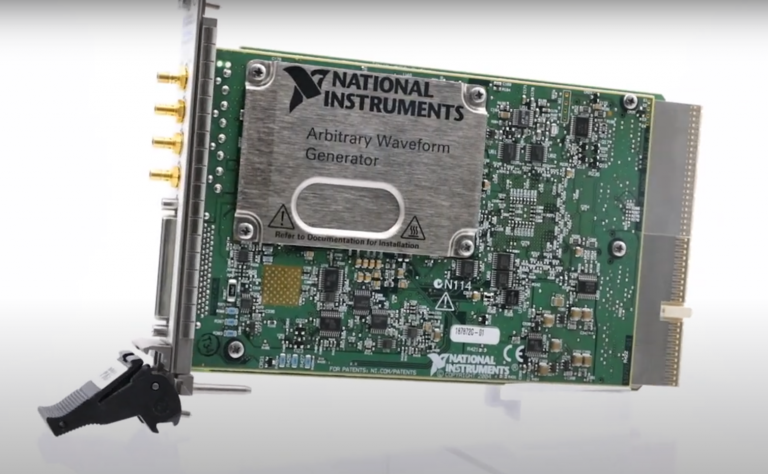
Listen to this blog post here. The National Instruments PXI-5441 is a powerful PXI waveform generator designed...
Click here to listen to this post. Companies in almost every industry are being transformed...
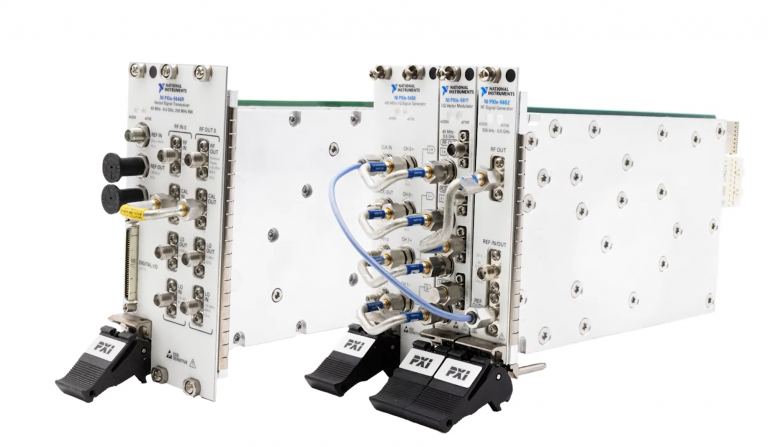
Listen to this post here. The PXIe Platform from National Instruments offers an incredibly valuable toolset for...

Click here to listen to this post instead. It is no secret that simulation and...