


Setup and Optimize the National Instruments PXI-5441 Waveform Generator
Listen to this blog post here. The National Instruments PXI-5441 is a powerful PXI waveform generator designed...
October 25, 2024
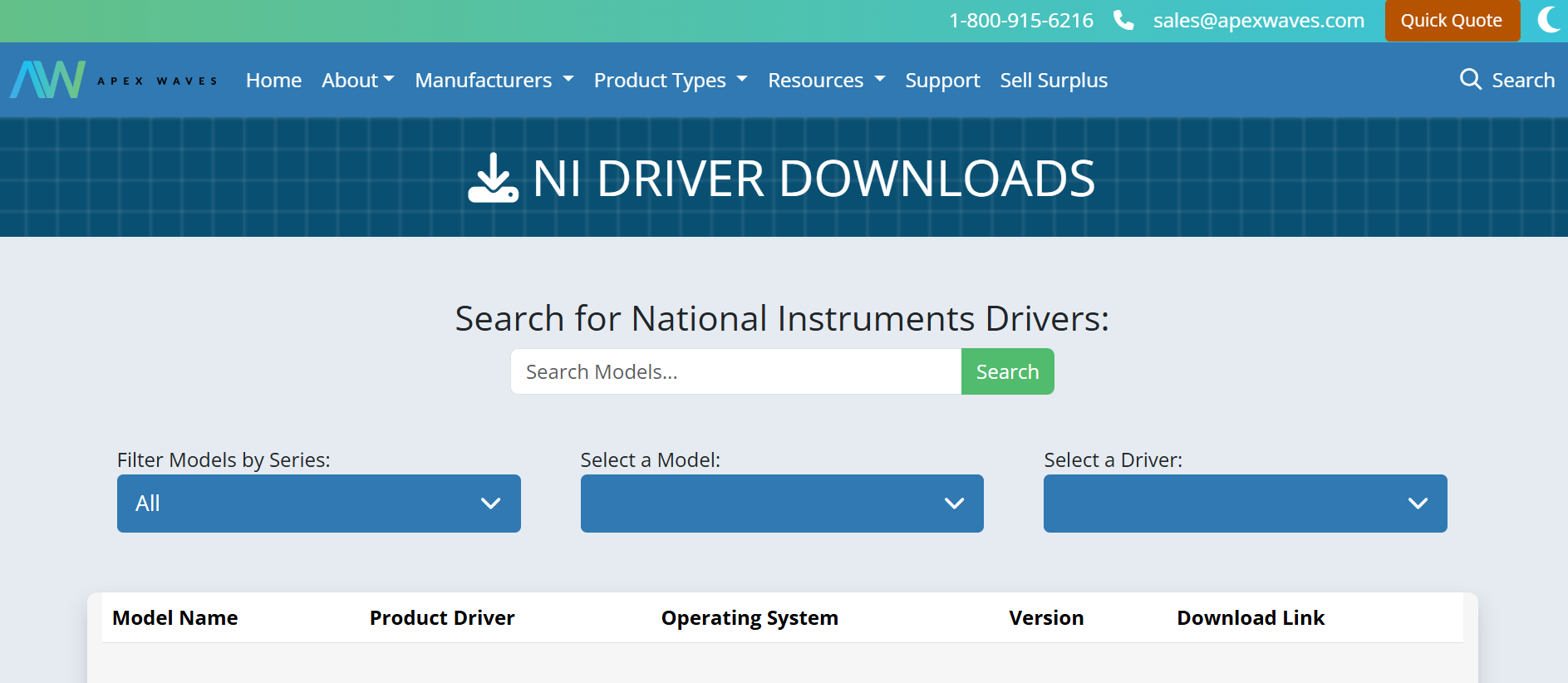






NI’s wide selection of drivers connect user operating systems and application software to their hardware, making them incredibly valuable tools for any test system. The diversity of available options is incredibly helpful, but can also be overwhelming. In this post, we will go over how to identify and install the specific driver you need for your device.
The driver that you select for your NI hardware helps determine whether or not the operating system you are using will recognize your hardware, and whether or not NI MAX (NI Measurement & Automation Explorer) will be able to communicate with it. NI MAX is a free program that comes automatically installed with all NI Drivers and allows access to NI hardware.
Your driver selection also determines which programming environments can be used, whether that is C++, LabVIEW, Python, etc.
NEW IS NOT ALWAYS BEST
When trying to choose the right driver for both your operating system and your hardware, your first inclination might be to download the newest version available. However, the newest version of a driver is not always the best option for your test system, especially if you are dealing with legacy parts. Every part of the system must “agree” on how to exchange data in order for it to be considered compatible, and this reliable data transmission is only possible when the software and hardware can work together without changes. The goal is to ensure ease of communication between systems, devices, and programs.
The specific application that the hardware is being used for is also a crucial factor when determining compatibility. Even if the applications install and function flawlessly on the most recent versions of an OS, such as Windows, how the parts are being used determines if they will work with other programming environments. Older versions of drivers may require some trial and error yet still function perfectly.
One rule of thumb is that drivers are typically compatible with hardware if they were published around the same time.
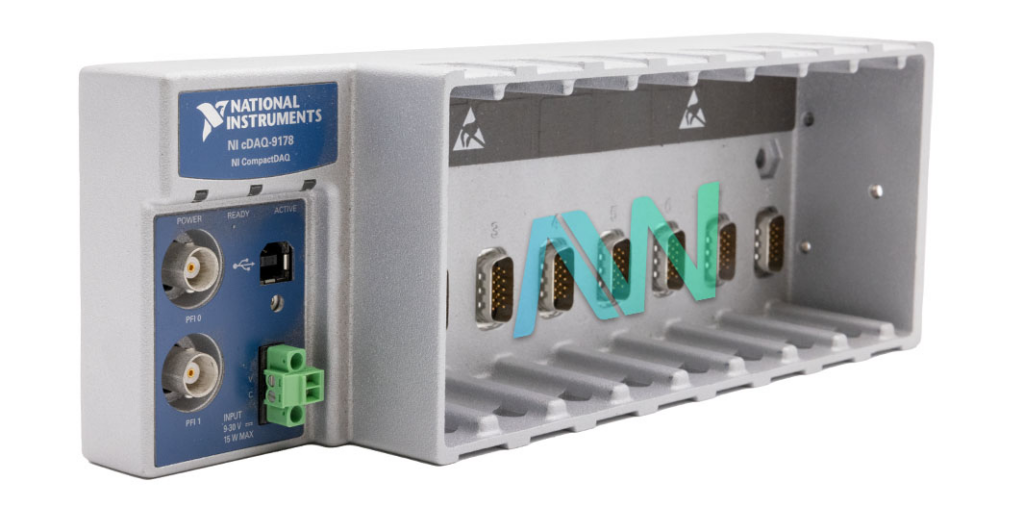
The model name of your NI hardware is made up of a distinct prefix followed by numbers and letters that describe the part’s primary functionality. For example, the prefix “cDAQ” on the model name of the cDAQ-9178 chassis indicates that it is part of the CompactDAQ modular platform. It has 8 slots, indicated by the final number in the cDAQ-9178 name.
Depending on the hardware, the model name can potentially be found in a variety of places. It can be found printed directly on the edge of the board, printed on the front of the part, on a label on either the left or right side of the part, or on the product info sticker. It may be preceded by either “M/N” or “Model” on a label to show that it is the model name.
To learn more about identifying your model name or part number, check out our previous blog post about the topic!
In general, different drivers pair with specific NI hardware series. The list below outlines some of the most common drivers and the hardware they are most often used with.
NI-DAQmx: for cDAQ, Multifunction DAQ, and C series hardware applications.
NI-SCOPE: for oscilloscopes and digitizers (particularly PXI and PXIe).
NI-DMM: for compatible digital multimeters.
NI-SWITCH: for matrix, relay, multiplexer, and switch modules.
NI-VISA: for Ethernet, serial, GPIB, and USBTMC instrument communication.
NI-XNET: for LIN, CAN, and supported automotive networks.
PXI Platform Services: for PXI or PXIe instrument modules and infrastructure.
While these are common drivers and use cases, it is important to remember that certain factors, such as the specific chassis or controller, can impact what software is required. In addition, some parts may require more than one package.
Your hardware might need a more specific toolkit or driver if it is FPGA-based, RF-focused, or a part of a specialized platform.

Look over the NI manuals (such as the driver readme and technical documentation) to look for specific helpful information such as the operating systems that are supported, the recommended driver family, the required toolkits, the firmware requirements, and any known limitations.
The applicable manuals can often be found by searching for the “model name” + “driver”.
Specific documentation from the manufacturer can be hard to find, especially for legacy parts. An excellent starting point would be our NI Manual archive, which allows you to search for official documents based on the specific model name. These documents can be freely downloaded as PDFs!
Ensure that you can answer the following questions regarding compatibility:
• Is the driver supported by my exact hardware model?
• Is the driver supported by my operating system (Windows, Linux, LabVIEW RT, etc.)?
(If using Windows, ensure that you know the exact version and edition.)
• Is my programming environment compatible with this driver?
(Programming/development environments include LabVIEW, TestStand, Python, C/C++, Visual Studio, and Measurement Studio.)
• Is my system 32-Bit or 64-Bit?
(Certain legacy programs and drivers are limited to 32-bit.)
As previously discussed, the newest version of a driver may not be the correct version for your system.
In general, newer versions are best suited for new installations with current operating systems and current programming environments, as well as for applications where all of the required hardware is listed as supported.
Older driver versions are often used for older PXI controllers, applications that utilize older Windows or LabVIEW installations, validated production systems, or programs that are 32-bit only.
If you are not sure which version you need, check out the Apex Waves NI Driver library. This free resource allows you to search for the exact driver version you need, even if you are working with legacy or outdated NI Hardware. Search by driver name, hardware model, or compatibility criteria.
A monthly email packed with valuable content—industry news, tutorials, obsolescence updates, and more. No sales pitches, just insights we think you'll find helpful!
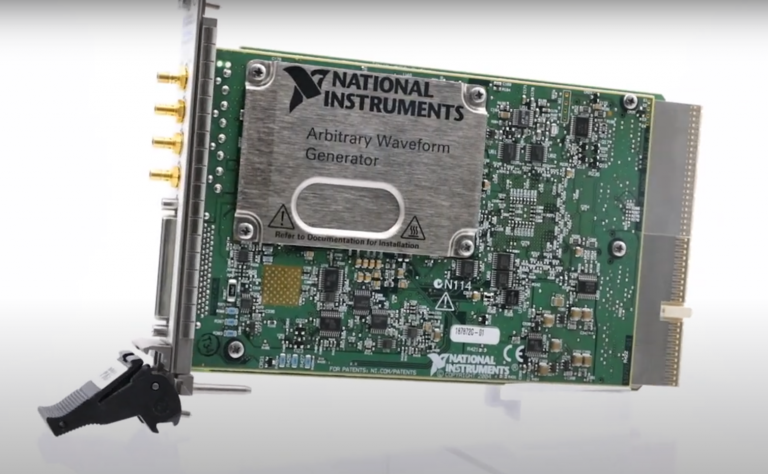
Listen to this blog post here. The National Instruments PXI-5441 is a powerful PXI waveform generator designed...
Click here to listen to this post. Companies in almost every industry are being transformed...
Listen to this post here. The PXIe Platform from National Instruments offers an incredibly valuable toolset for...

Click here to listen to this post instead. It is no secret that simulation and...