


Setup and Optimize the National Instruments PXI-5441 Waveform Generator
Listen to this blog post here. The National Instruments PXI-5441 is a powerful PXI waveform generator designed...
October 25, 2024







CompactRIO (cRIO) Systems from National Instruments are embedded systems that are well-suited for IIoT, industrial monitoring, and control applications. These rugged devices boast a closely integrated software toolchain that aids in high-performance processing. In today’s post, we will use the cRIO-9075 as an example to guide you through configuring a CompactRIO system in LabVIEW.

NI CompactRIO modules support a wide range of test and measurement applications, including automation, motion control, and vision. With hundreds of NI C Series modules available, there are plenty to choose from to fit the needs of your specific use case—ensuring connectivity with a wide range of connector options. These modules feature real-time processors and high-speed FPGAs, the combination of which makes the cRIO platform stand out as a robust solution for industrial control and monitoring. When compared to other NI controller systems, the cRIO system boasts a reduced system response control delay by utilizing a direct connection to the FPGA.
The hardware we will be using for the purposes of this how-to guide are the cRIO-9075 cRIO Controller along with the PS-15 Power Supply. Keep in mind when these modules are referenced in the directions that your model name may differ.
After connecting your hardware, open up NI MAX and expand the “Remote Systems” section to locate your controller (in this case, the cRIO-9075). Next, you will need to configure the IP settings to align with your subnet. To do this, open up the Control Panel of your computer, and navigate to the “Network and Internet” section. Select “Network and Sharing Center”, and then find the Unidentified Network under “Connections”. Select “Ethernet 4”, which is located next to this network. In the Properties window, locate “Internet Protocol Version 4” and choose “Properties.”

To find the IP address of the cRIO-9075, return to NI MAX and choose “Network Settings” in the bottom bar. Make sure that both the IP address and the subnet mask of the cRIO-9075 and the Internet Protocol settings match—if they do, click “OK.” Close the other windows and return to NI MAX.
In the left panel, located under the cRIO-9075, right-click on “Software” and select “Add/Remove Software.” Here, you will need make sure that all necessary operating software is installed, including:
• LabVIEW Real-Time
• The FPGA Software
Make sure to install the software version that is compatible with your version of LabVIEW! This is an important step that, if overlooked, can cause errors. For example, if using LabVIEW 17, the LabVIEW 17 package will need to be installed.
If you are having trouble tracking down any specific drivers, visit our NI Drivers database! We have freely downloadable drivers available for both current and legacy NI hardware models.

Once all the necessary software has been installed, it’s time for the final step. Open LabVIEW, select “Create Project”, and then choose “Blank Project.” Right-click on the project title and click “Targets and Devices.”
Your system should now appear under the “Real-Time CompactRIO” tab—select it and then click “OK.” You will want to leave the Programming Mode set to “Scan Interface”. Once you click “Continue”, the cRIO-9075 should now be visible! When expanded, your chassis and I/O modules should automatically be listed.
If you’ve followed this guide, you now know the steps to configuring a CompactRIO system in LabVIEW! If you have any questions about this process or about CompactRIO hardware, reach out to our technicians at support@apexwaves.com. We will be happy to assist you in any way that we can! Looking for more content similar to this? Subscribe to our YouTube channel for weekly uploaded videos with product highlights, how-to guides, and industry insights.
A monthly email packed with valuable content—industry news, tutorials, obsolescence updates, and more. No sales pitches, just insights we think you'll find helpful!
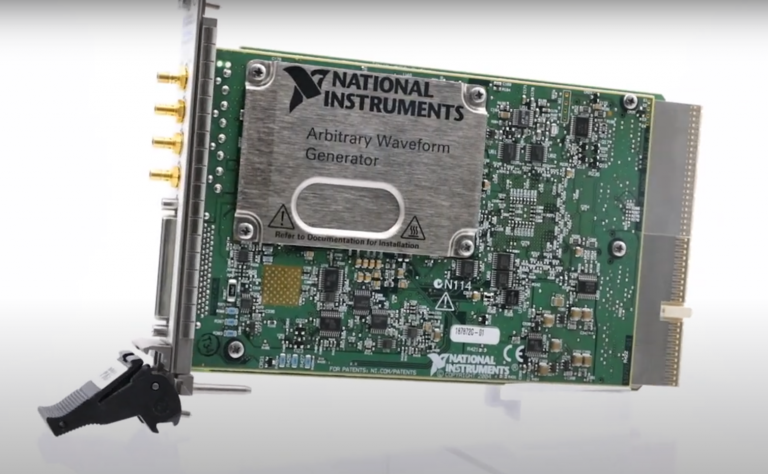
Listen to this blog post here. The National Instruments PXI-5441 is a powerful PXI waveform generator designed...
Click here to listen to this post. Companies in almost every industry are being transformed...
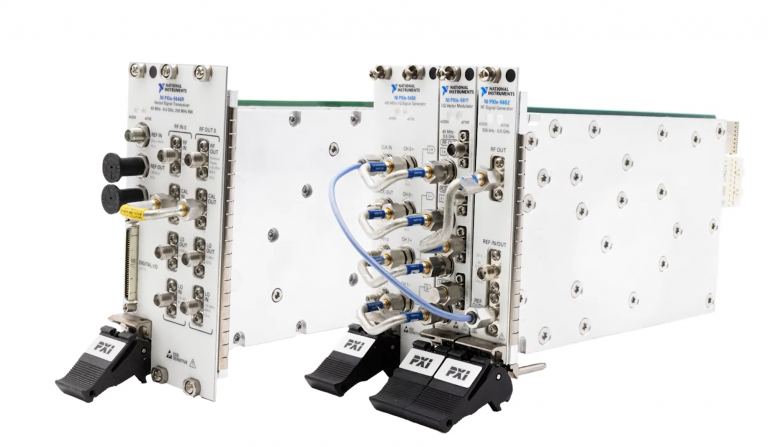
Listen to this post here. The PXIe Platform from National Instruments offers an incredibly valuable toolset for...

Click here to listen to this post instead. It is no secret that simulation and...